
An email floated around a couple of weeks ago about free premium Prezi accounts for educators. Always game for the next shiny new tool, I decided to give it a shot. I had a presentation coming up for Local Food Connection 2010 that I was going to have to start from scratch on Keynote, so why not give Prezi a try.
I watched the tutorials, viewed some other people’s Prezis and poked at one for a while. Honestly, the blank canvas was terrifying at first. I’m a very linear thinker, I guess. I need outlines and plans and things in order. I had a hard time visualizing all the parts of the presentation (not literally, of course).
However, just last week, I had listened in when Professor Deb Morrison lectured to the Gateway to Media class on creative process and mind mapping.I decided a mind map might just do the trick.
Office Depot is my closest office/art supply place, so I headed there to find big paper (tabloid or 11×17 size recommended!). I got a sketch book for less than $10. I had markers at home, but I think next time I might used colored pencils.
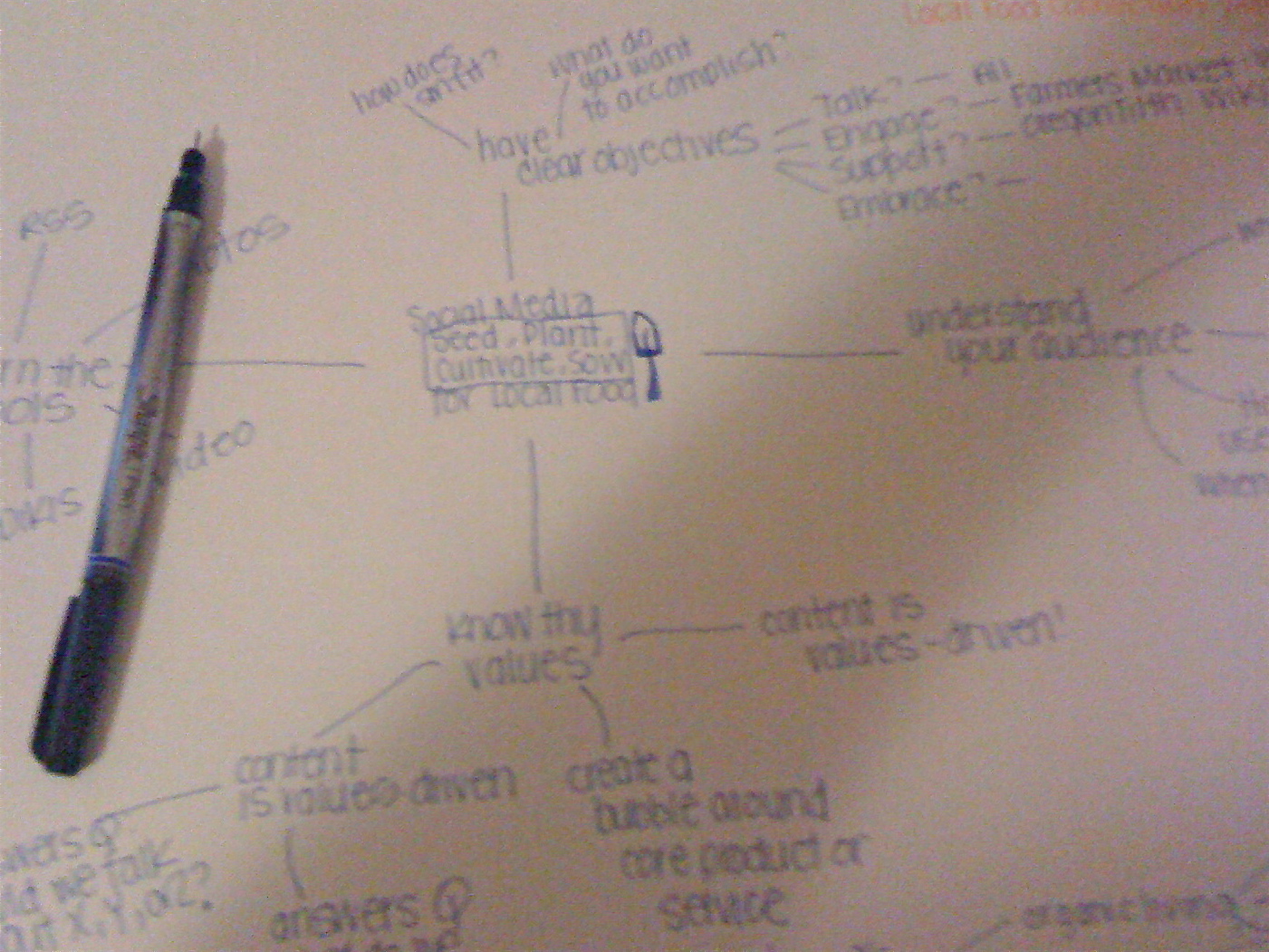
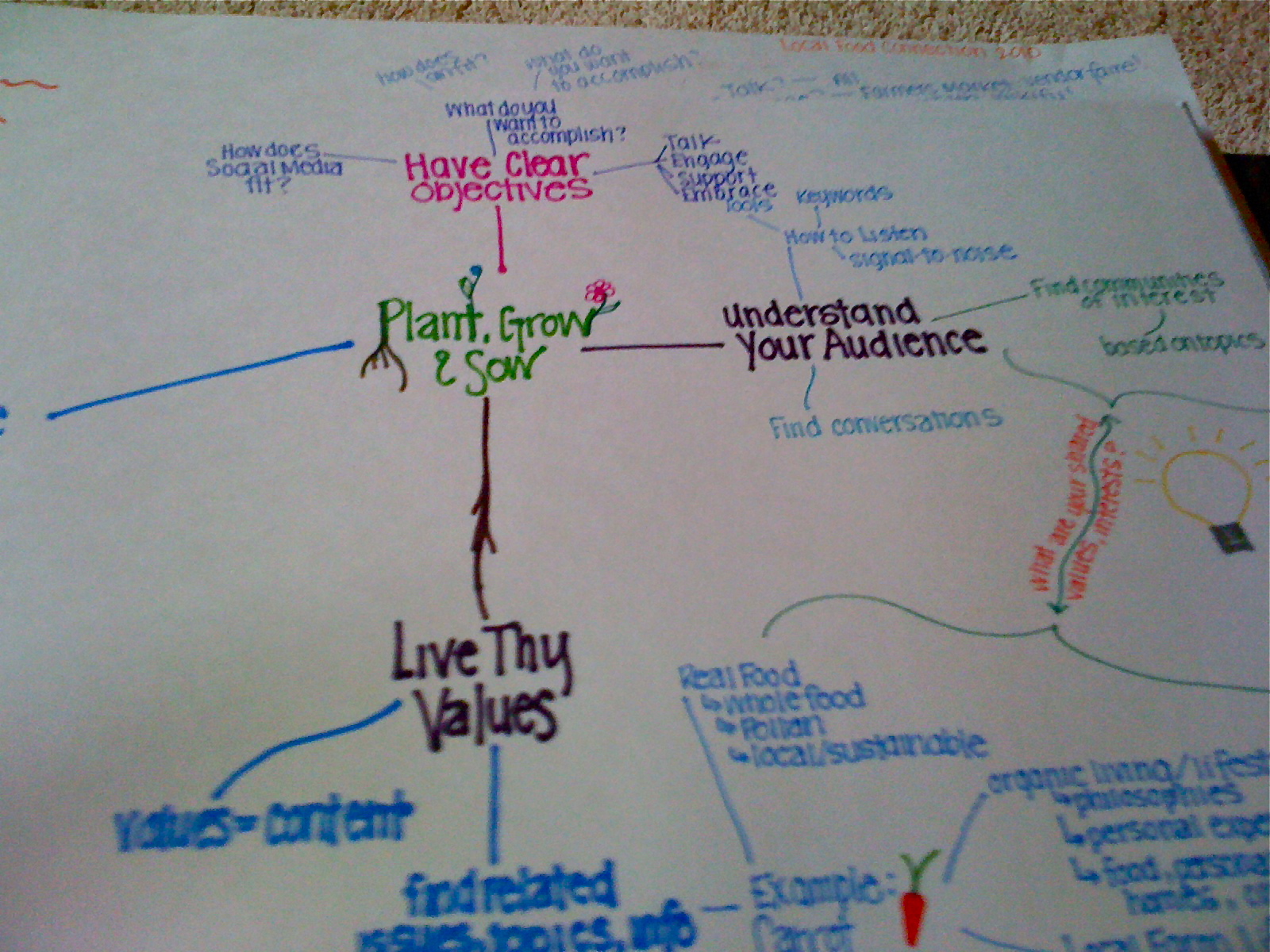
With the mind map created, I went back to my Prezi canvas and started to map out the presentation in the same way. I’d estimate it took about six hours total to learn and create the presentation. That is on par with what it takes me to start a Keynote from scratch.
I was very pleased with the final presentation. I downloaded the Prezi to my computer so I didn’t have to rely on the nonexistent wi-fi at the conference location and it went very smoothly. Things that I still need to figure out?
- The Prezi Web site says that you can use remotes with the presentations, but neither my Mac remote nor the app I downloaded called Rowmote worked. That kept me tied to my laptop a little more than I am comfortable with.
- If you embed images, my advice is to either choose ones that are fairly high resolution or don’t zoom in tightly (on the presentation below, you’ll see what I mean with the carrots and corn, particularly).
- Because you don’t have presenter notes like a Keynote or PowerPoint, I would recommend either knowing your presentation inside and out, or putting your notes on index cards. I opted for the latter for the formal presentation to the conference participants.
With that said, this is a way cool tool that I will use again. Probably even this week! You can view my Prezi below.
Local Food Connection 2010 on Prezi
UPDATE: I get a lot of questions about how to do the animation and stuff. It’s super easy with the “path” function on Prezi. I did a little screencast to show you: http://screencast.com/t/NTQyM2U2Mm

Comments
3 responses to “I Made a Prezi: Here’s my Process”
Thank you so much for sharing your experience! I’m a bit freaked out by it too but when I saw your prezi on Twitter I was in awe – looks so great but really seems daunting.
I know the benefit of the prezi is to not say “we’ll get to that in 5 slides” & to avoid a linear track presentation … but how do you move to that area? Do you forget to go back to certain areas? How do you manage that from a public speaking standpoint?
On one hand, I think it made me think more about each point I wanted to make and in which order. The question I actually get a lot is about the “order” of the presentation… It’s actually really easy to do that and make sure it flows in the way you want it to, technically.
I wrote out my notes on index cards and I numbered each based on the “big” points for me (Live they Values, How Does SM Fit, etc.).
My biggest complaint is that I was tied to my computer because I couldn’t get the remote to work…
I did a little Jing screencast about the “path” function. I think that might help… (excuse the kiddo in the background) 🙂
http://screencast.com/t/NTQyM2U2Mm
@chrisnordyke @cr8tivejen Thanks, Chris! I also did a little blog post about it if either of you are interested: http://bit.ly/9pqfhf #prezi
This comment was originally posted on Twitter