I’m often asked about how to best handle social media maintenance and management tasks. Over four years or so I’ve developed a few shortcuts that work well for me. I’ll explain each in a separate post, but we’ll start with feedreaders!
Yay feedreaders!
Using a feedreader to track blogs I’m interested in along with keyword searches is my number one shortcut. It was thanks to Bloglines, my first feedreader that I really started to understand social media. I subscribed to PR, social media, marketing and advertising blogs left and right. By doing so, I learned best practices and social media etiquette through observation.
My use has changed a little bit, which I’ll explain. First, though, take a peek at this video from Common Craft, it’ll give you the basics (click on the image).
Common Craft recommends Google Reader, which is very popular. The aesthetics of Google Reader just don’t work for me – nothing personal, Google. I use Netvibes. I like the “dashboard” feel to it and I can separate different clients, interests, projects into their own tab.
You can see how this looks at the public Netvibes dashboard I set up. Feel free to use this as a start for your own. Once you create an account with Netvibes, any changes you make will be saved.
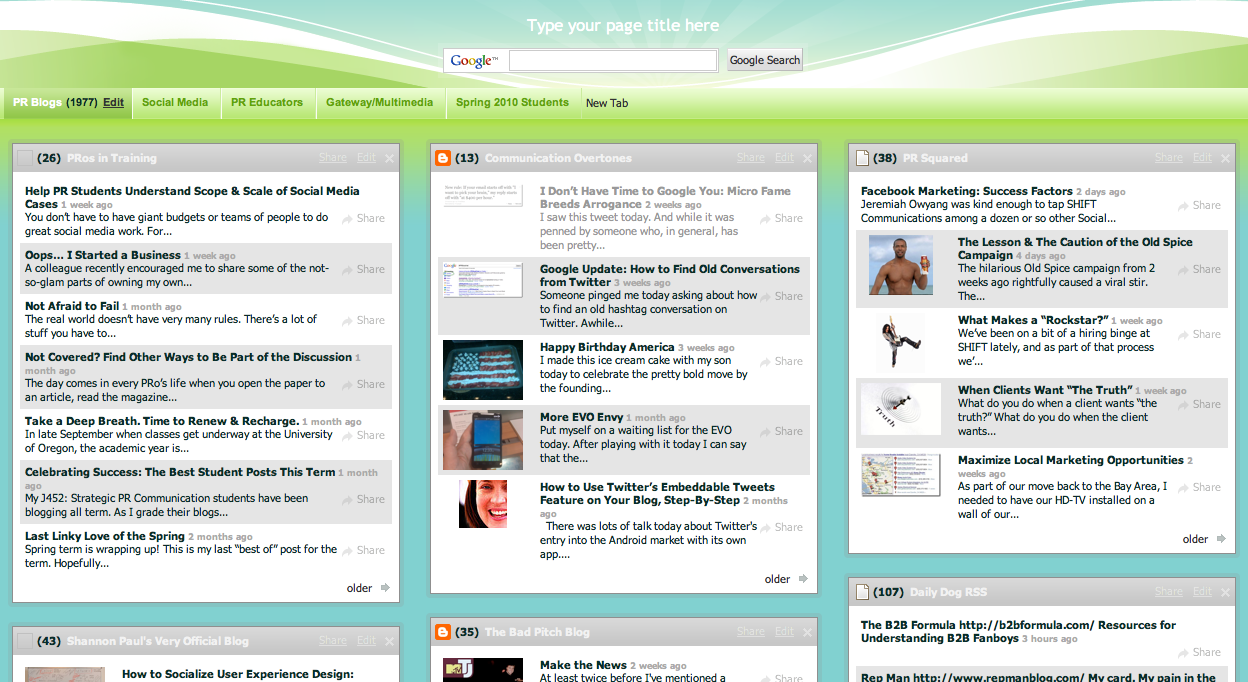
What’s in my feedreader:
- Six or so tabs related to PR, social media, marketing, nonprofit work, advertising, etc. Each has its own tab and each tab has 10 – 20 different blog feeds. I’ve found the best blogs (for me) that I want to subscribe to.
- A tab for each client for which I do listening and monitoring activities. For clients I subscribe to interesting blogs and also subscribe to search results. This is really how my use has changed. I use my feedreader more for managing and maintaining client social media than for my own purposes. (I’d say it’s a 60-40 split in terms of how much time I spend… 60% on client stuff and 40% on my own).
Subscribe to search results? Why yes! I do keyword searches with (at minimum): Google, SocialMention, IceRocket, Twitter, Flickr and YouTube. When you do the search on any of those sites, you can subscribe to the results. Look for the RSS icon on the page or in your address bar on your browser.
 It takes some time up front to set up a useful dashboard. Once it’s set up, not only do you know if you or your client is mentioned on a blog or a tweet, but you also have all kinds of “input” at your fingertips for creating great content. I rely on my feedreader for inspiration for tweets and for blog posts. By spending the time upfront to make a useful dashboard, the day-to-day or week-to-week maintenance is lessened.
You can do some pretty cool things with RSS (as a subscriber). Some tips:
- You can subscribe to specific categories on most blogs. Maybe you’re not interested in everything everyone says on a frequently-updated site, but are interested in a specific topic or category. You can pull just those posts.
- A site called PostRank will let you subscribe to just the most popular posts. I’ve done this with sites like Jezebel or Perez Hilton because there are just too many posts to keep up with everyday. Yes… I have subscribed to Perez Hilton. Don’t judge.
- Tools like Yahoo! Pipes let you dump a bunch of sites in one end, along with some keywords and out the other end? A custom RSS feed. I think this could be a sweet tool for media monitoring (put in New York Times, USA Today, etc. etc…. filter for your company name and voila!), but I haven’t tried it out yet. Yahoo! Pipes is a bit “techy,” so beware.
- Create an RSS feed where none exists. This is a little more complicated, but it’s possible! This post overviews a few of the tools that can help. The post is a tad dated, so I’m not sure all the tools listed still exist, but I’ve tried a few with varying degrees of success. This is also on the techy side.
Final tip: Making checking your feedreader part of your daily routine. Set the feedreader as your homepage, add it as a shortcut on your browser, or leave yourself a reminder (physical or electronic) to take a peek.
Any other tips? I’d love to hear how you’re using feedreaders. Which reader are you using and why?
[this post is cross-posted at Verve: In Bloom]

Comments
7 responses to “My Top 5 Shortcuts: #1 Use a Feedreader”
New from PRos: New from PRos My Top 5 Shortcuts: #1 Use a Feedreader http://dlvr.it/3GVwd
This comment was originally posted on Twitter
My #1 social media management “shortcut” – a good feedreader: http://bit.ly/9FWOVG (new PRos post)
This comment was originally posted on Twitter
Creating an RSS feed is tough, but @kmatthews gives a great guide: http://bit.ly/byj4NP
This comment was originally posted on Twitter
[…] For following blogs I use a reader. Readers allow you to read all the latest posts on blogs you follow in one convenient place, as opposed to visiting all the different websites. I use Google Reader, which works fine. Every time I find a blog I like, I simply add it to my reader and following it becomes cake. Kelli Matthews has some good advice on organizing/choosing a reader, so I suggest reading her post “My Top 5 Shortcuts: #1 Use a Feedreader.” […]
[…] The cost of social media isn’t in the hard costs, it’s in the time costs. Creating a process for yourself will help save time and also make social media activities a part of your routine. If you missed Tip #1, check out my advice on setting up an RSS Feedreader here. […]
[…] My Top 5 Shortcuts: #1 Use a Feedreader: My former Public Relations professor from the University of Oregon maintains a blog that offers practical social media tips as well as various best practice examples. I really like this post that highlights an organized reading routine – hence the GoogleReader kick that initiated this post. Kelli makes the point that while it’s important to skim through your reader daily, it’s more efficient to let the content come to you by subscribing to RSS feeds with filters and using notification alerts. […]
[…] is a quick tip, but an important one. See tip 1 on feedreaders, 2 on creating a process and 3 on using twitter, […]